
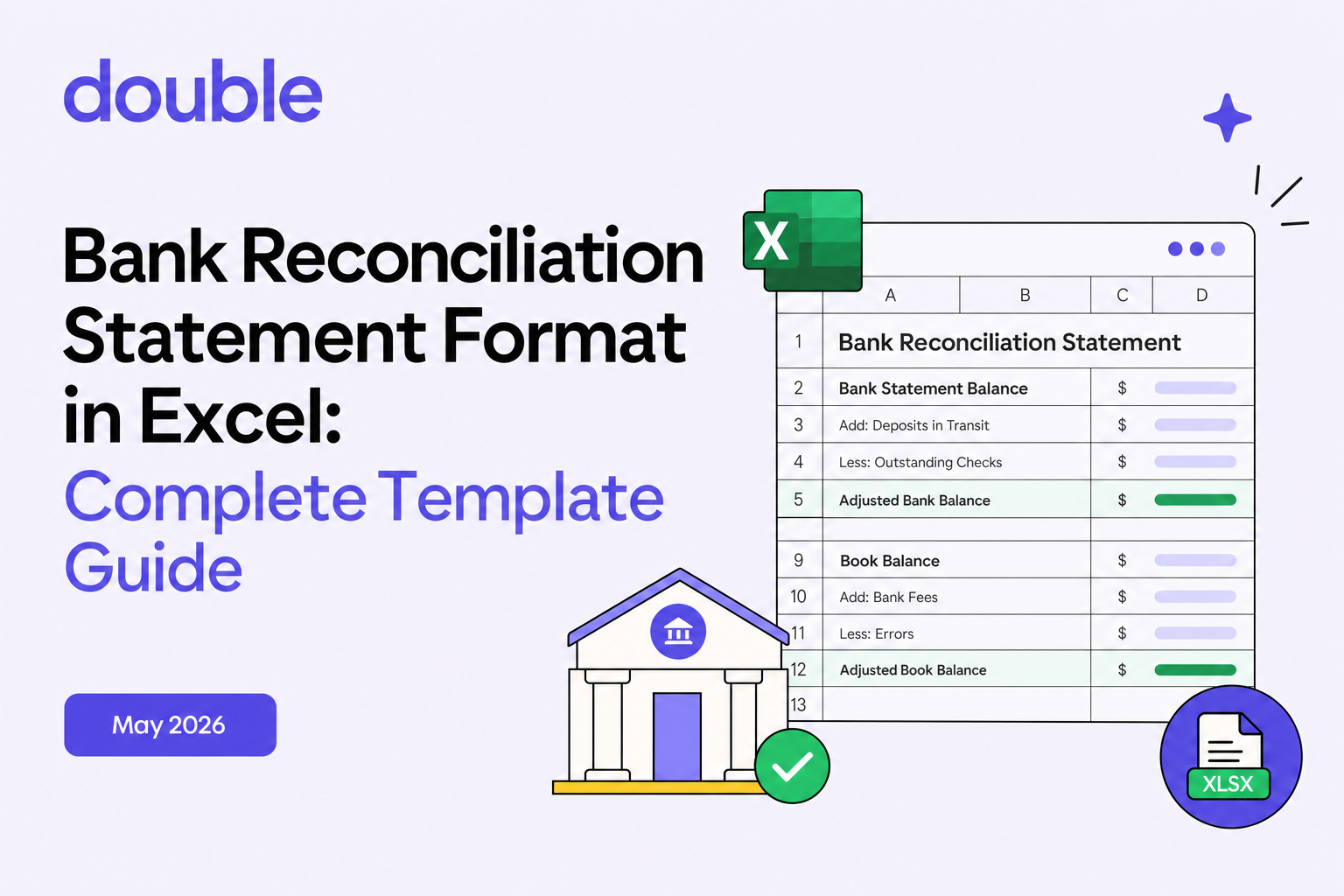

Your bank reconciliation statement in Excel probably looks fine until you try to close the month and nothing balances.
You've got formulas pulling from three different tabs, conditional formatting that turns red when something goes wrong, and a growing list of items you've flagged for review but never actually resolved. The issue is that Excel is great at storing data but terrible at telling you what went wrong. Getting the structure right fixes that gap, so you spend less time troubleshooting and more time closing.
TLDR:
- A bank reconciliation setup in Excel uses formulas like SUMIF and VLOOKUP to match your ledger against bank statements and catch missed transactions.
- Set up three tabs (bank, ledger, summary) with conditional formatting to flag discrepancies instantly when adjusted balances don't match.
- Excel works well for low volumes but breaks down past thousands of monthly transactions or four-plus bank accounts.
- Double's AI analyzes discrepancies automatically and syncs changes to QuickBooks, Xero, Sage Intacct, and NetSuite with 30-50% faster closes.
What Is a Bank Reconciliation Statement in Excel
A bank reconciliation statement is a record that compares your internal books against your bank statement to confirm they match. Every month, transactions get missed, duplicated, or miscoded. The reconciliation catches those gaps before they become bigger problems.
The process serves three purposes: verifying that your records are accurate, flagging suspicious or unauthorized transactions, and giving you a clear picture of your actual cash position.
Excel became the go-to tool for this because it's accessible, flexible, and formula-driven. You can build a custom layout, automate running totals, and adjust the structure to fit any account type without buying specialized software.
Components of a Bank Reconciliation Template
A complete template has four distinct sections, each capturing a different layer of the comparison.
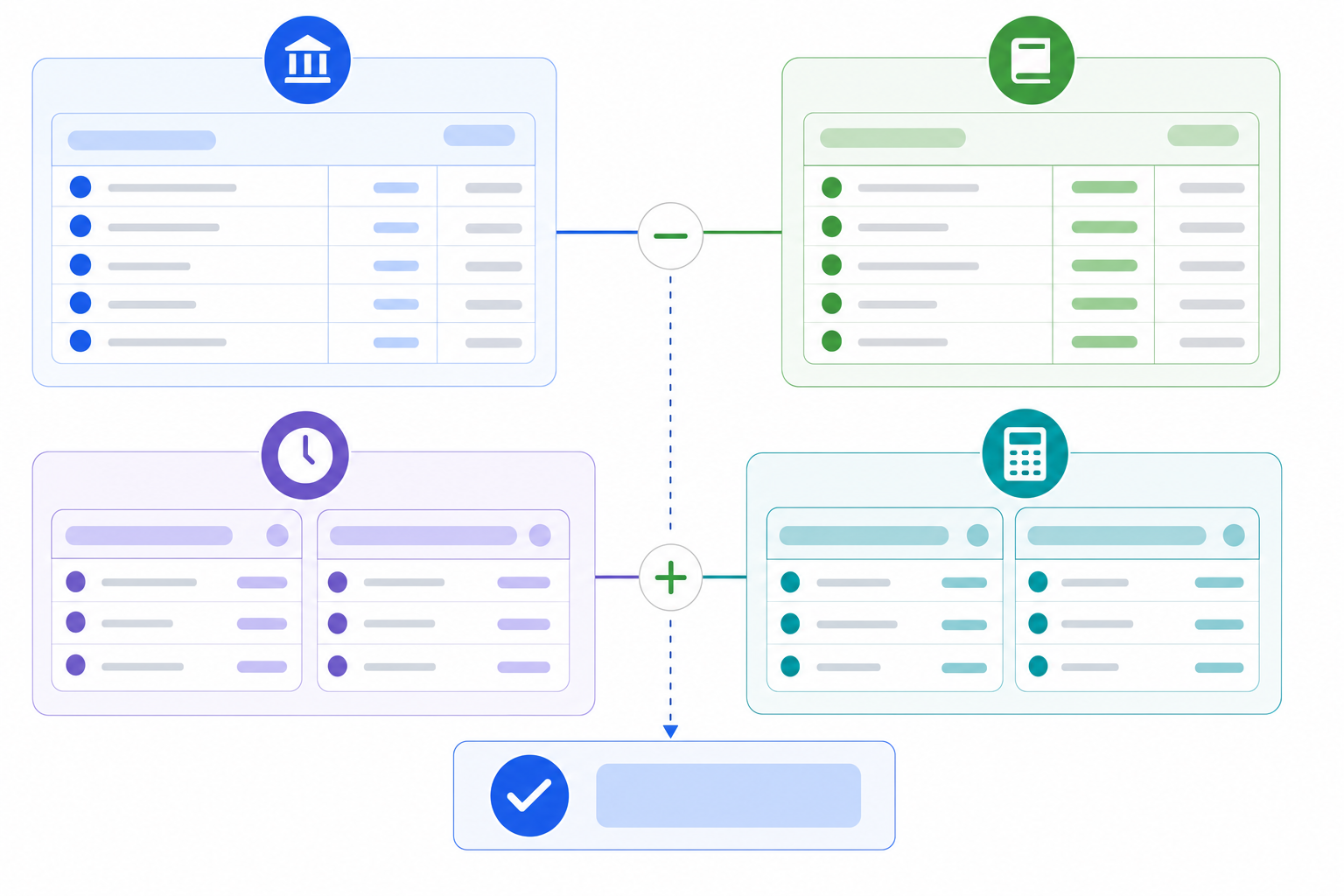
The bank statement section tracks date, description, debits, credits, and running balance for each transaction the bank posted. Your internal ledger mirrors that structure with date, reference number, description, debits, credits, and book balance. The items section captures deposits in transit and outstanding checks. The adjustments section handles bank fees, interest income, NSF checks, and errors.
Deposits in transit are payments you've recorded but the bank hasn't posted yet. Outstanding checks are issued payments still waiting to clear. These two line items explain most of the gap between your bank balance and book balance.
The adjustments section handles what's left: bank charges you missed, interest the bank credited, or coding errors on either side. When both sections net to zero, the reconciliation is complete.
Step-by-Step: Setting Up Bank Reconciliation in Excel
Setting up a bank reconciliation statement in Excel takes some upfront work, but the payoff is a structured process you can run every month in minutes.
Start with the Core Structure
Use three tabs: one for your bank statement transactions, one for your book (ledger) transactions, and one for the reconciliation summary. Keeping data separated by source makes formula-based matching far easier to audit later.
Add Your Reconciliation Formulas
In the summary tab, use SUMIF to total outstanding checks and deposits in transit, then build your ending balance formula:
Line Item | Formula Logic |
|---|---|
Bank ending balance | Pull directly from bank statement |
Add: Deposits in transit |
|
Less: Outstanding checks |
|
Adjusted bank balance | Sum of above three rows |
Book ending balance | Pull from ledger tab |
Difference |
|
The difference cell should always return zero. If it does not, you have an unresolved discrepancy worth investigating.
Flag Discrepancies Automatically
Use conditional formatting to color the difference cell red when its value is anything other than zero. This gives anyone opening the file an instant visual signal without needing to read every row.
Key Excel Formulas for Bank Reconciliation
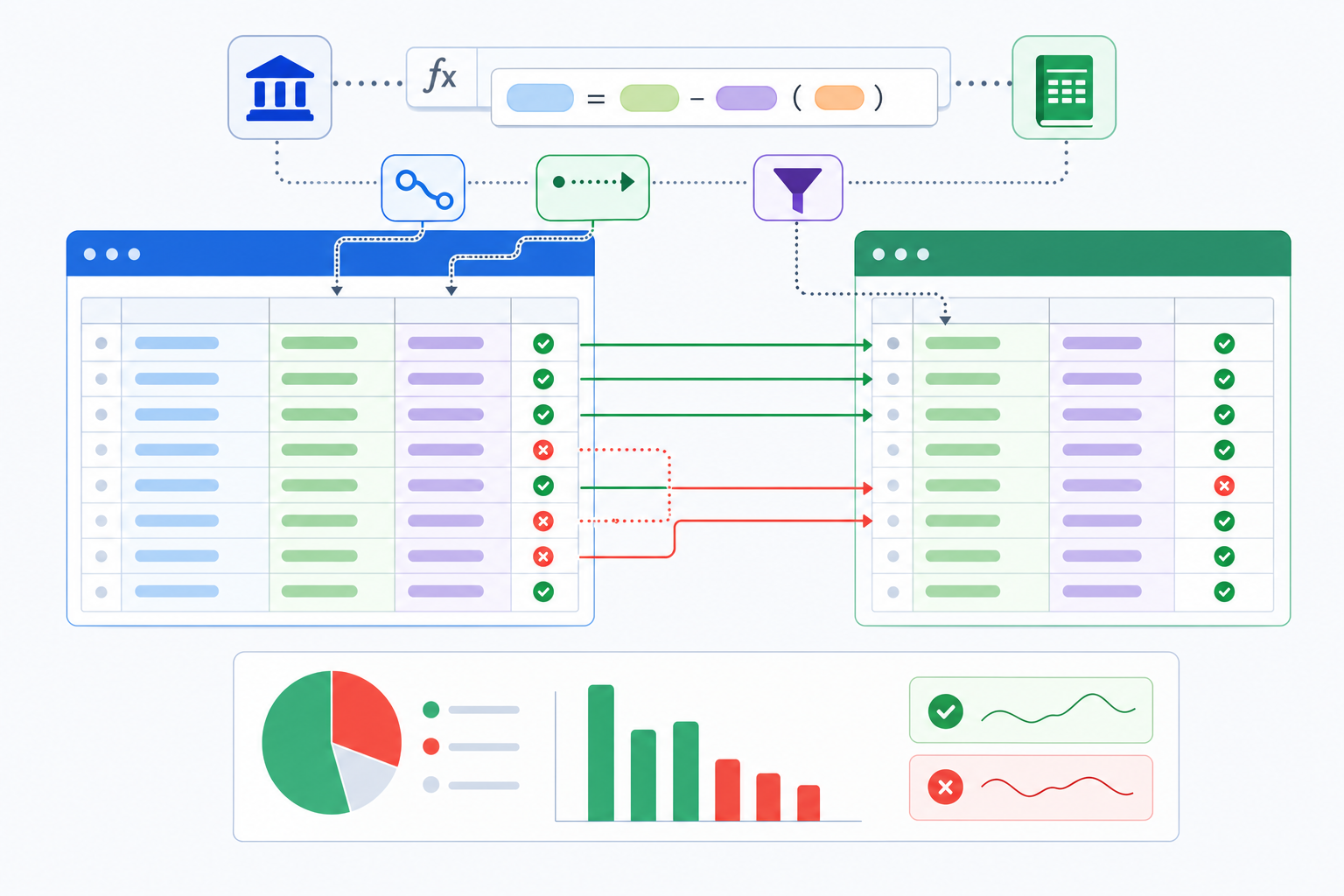
A handful of Excel formulas do most of the heavy lifting in any bank reconciliation statement. Getting comfortable with them means fewer manual errors and faster month-end closes.
The Core Formulas Worth Knowing
Here are the ones that show up in nearly every reconciliation template:
SUMIFlets you total transactions by category, date range, or reference number, so you can isolate deposits or withdrawals without sorting manually.VLOOKUPorXLOOKUPmatches transactions between your cash book and bank statement by reference ID, flagging anything that doesn't pair up.IFstatements flag or outstanding items automatically, returning a clear status like "Matched" or "Review."IFERRORwraps around lookup formulas to prevent broken references from cluttering your sheet with error codes.SUMPRODUCThandles multi-condition totals, useful when you need to match amounts across date ranges and account codes at the same time.
A Quick Reference Table
Formula | Primary Use in Reconciliation | Example |
|---|---|---|
| Subtotal deposits or withdrawals by criteria |
|
| Match transactions across two data sources |
|
| Flag matched vs. line items |
|
| Suppress lookup errors cleanly |
|
| Multi-condition amount matching |
|
Combining these formulas is what separates a static spreadsheet from a genuinely functional reconciliation tool.
How to Use Your Bank Reconciliation Template Effectively
Once the structure is in place, getting the most out of it comes down to a few consistent habits.
Start every reconciliation by entering the closing balance from your bank statement, then work through outstanding items one by one. Match each transaction in your records against the bank's records before moving to the next. Anything that doesn't match gets flagged immediately carried forward to month-end.
A few practices that make a real difference:
- Update your template on the same day each week so discrepancies stay fresh and easier to trace back to their source.
- Keep a running notes column for any item you've flagged but not yet resolved, so nothing slips through at month-end.
- Lock your formula cells after setup so accidental edits don't quietly break your reconciliation logic.
Common Bank Reconciliation Discrepancies and How to Resolve Them
Discrepancies between your books and bank statement fall into a few predictable categories, and knowing which type you're dealing with cuts resolution time considerably.
Timing Differences
These are the most common and least alarming. Outstanding checks, deposits in transit, and bank fees posted after your cutoff date all create gaps that resolve themselves in the next period. In your Excel template, flag these in a separate column so they carry forward automatically.
Errors and Unauthorized Transactions
These require immediate action. Common culprits include duplicate entries, transposed numbers, and unrecognized charges that may signal fraud or processing mistakes. Cross-reference each line against source documents before closing the reconciliation.
Setting Up Automation Features in Excel
Excel's automation features can handle most of the repetitive work in bank reconciliation when set up correctly.
VLOOKUP and INDEX-MATCH for Transaction Matching
Start by assigning unique transaction IDs to each row in both your bank statement and cash book columns. From there, VLOOKUP or INDEX-MATCH can scan across both datasets and flag matching amounts automatically, cutting manual comparison time considerably.
Conditional Formatting for Items
Apply conditional formatting rules to flag any transactions that remain unreconciled. These rows will stand out visually, so nothing slips through at month-end.
Best Practices for Monthly Bank Reconciliation
Monthly reconciliation sets the floor, not the ceiling. Higher-volume businesses with daily transactions often benefit from weekly reviews to keep outstanding item lists short and easier to investigate.
A few habits that hold up over time:
- Assign clear ownership so one person prepares the reconciliation and a second person reviews it. Segregation of duties catches errors that self-review misses.
- Track how long each outstanding item has been unresolved. Anything aging past 60 days deserves a direct look, not another carry-forward.
- Archive each completed reconciliation with its supporting bank statement attached. When auditors ask questions months later, the documentation is already organized.
Reconciliations without audit trails are just math. The documentation is what gives the numbers their credibility.
Limitations of Excel for Bank Reconciliation
Excel works well at low transaction volumes. The cracks show as volume or team size grows.
There are a few recurring pain points that finance teams run into as their needs outgrow what a spreadsheet can handle.
Where Excel Starts to Struggle
- Manual data entry is the biggest constraint. Without a live bank feed, you're re-keying or copy-pasting every transaction, which introduces errors and costs more time than the template saves.
- No real-time sync means your reconciliation is already slightly stale the moment you open it.
- Collaboration is limited. Two people working the same file risk version conflicts and overwritten formulas, with no change history to fall back on.
- Complex scenarios strain the format quickly. Multi-currency accounts, payment processor batching from tools like Stripe, and high-volume intercompany transactions require workarounds that break under pressure.
At a certain scale, keeping the Excel template functional becomes its own job.
When to Move Beyond Excel Templates
Excel templates work well until volume or complexity tips the balance. A few clear signals worth watching:
- Four or more bank accounts across separate entities, where cross-referencing tabs starts to feel like a second reconciliation job in itself.
- Monthly transaction volumes in the thousands, making manual matching impractical within any reasonable close window.
- Recurring discrepancies in the same categories, pointing to a process gap no formula can close on its own.
- Real-time cash visibility requirements that a periodically updated file simply cannot meet.
- Compliance demands for documented sign-off workflows and audit trails that live outside the spreadsheet entirely.
- More than one person needing to work the same reconciliation at once without overwriting each other's edits.
When several of these show up together, the template has done its job well. What comes next just needs to be built for that scale.
Automating Bank Reconciliation with Double
When Excel templates hit their ceiling, Double picks up the work. Double's AI Bank Feeds categorize incoming transactions through confidence-based bucketing: potential matches against ledger items, composable rules that apply multiple conditions to the same transaction (something QuickBooks doesn't natively support), auto-classifications drawn from historical patterns, and flagged items routed for review with automated vendor lookups already completed.
When a reconciliation doesn't balance, Double's AI Reconciliations feature analyzes the discrepancy against an uploaded statement to pinpoint timing issues, duplicates, or missing entries without manual troubleshooting.
Double reports 30 to 50% time savings per close for accounting firms.
Final Thoughts on Bank Reconciliation in Excel
A bank reconciliation statement format in Excel can carry you through the early stages of your accounting workflow without much trouble. A clean structure gives you flexibility, the formulas catch errors, and the monthly process becomes routine. But once you're juggling multiple accounts, tracking hundreds of transactions, or needing audit trails that live outside the file, Excel starts showing its age. That shift just means you're ready for tools built to handle what comes next.
Your bank reconciliation statement format in Excel can carry you through the early stages of your accounting workflow without much trouble. The formulas catch errors and the monthly process becomes routine. But once you're juggling multiple accounts, tracking hundreds of transactions, or needing audit trails that live outside the file, Excel starts showing its age. That shift just means you're ready for tools built to handle what comes next.