
You've downloaded a free bank reconciliation template, opened it up, and realized half the formulas reference cells that don't exist anymore. A good free automated bank reconciliation in excel approach gives you SUMIF logic that totals cleared transactions, conditional formatting that turns red when your difference cell isn't zero, and a running balance column that updates line by line so you can spot duplicate entries or timing gaps before you sign off. The whole point is to move from manual matching to a repeatable checklist that works the same way every single month.
TLDR:
- A bank reconciliation template maps your internal cash records against your bank statement to spot timing differences, transposition errors, and missing fees.
- Excel formulas like SUMIF and conditional formatting catch input errors automatically and flag unreconciled items before they compound.
- Monthly reconciliation works for moderate transaction volumes, but higher-volume businesses should reconcile weekly or daily to catch fraud and errors faster.
- Excel templates break down with multiple accounts, version conflicts, and broken formulas; Double automates matching and tracking across all client accounts.
What Is a Bank Reconciliation Template?
A bank reconciliation template is a structured spreadsheet that maps your company's internal cash records against the balance your bank reports. When the two don't match, the template helps you figure out why. This process serves as a critical financial control that maintains accurate records.
It organizes the process into clear sections:
- The ending bank statement balance pulled directly from your most recent statement
- The book balance from your general ledger or accounting records
- A set of adjustment items covering transactions that appear in one record but not yet the other, such as outstanding checks, deposits in transit, or bank fees not yet entered in your books
A blank worksheet invites inconsistency. A pre-built template enforces a standard format each month, with labeled input fields, formula cells, and a balance check that confirms whether both sides agree.
Why Use a Bank Reconciliation Template in Excel?
Excel remains one of the most widely used tools for bank reconciliation because nearly every business already has access to it. There is no extra software to buy, no onboarding process, and no learning curve for anyone who has opened a spreadsheet before.
A good template gives you a repeatable structure so nothing gets missed. A bookkeeping workflow template provides clear columns for your bank statement balance, book balance, outstanding checks, deposits in transit, and any adjustments needed to bring the two figures into agreement.
What Makes Excel a Practical Choice
- Formulas do the arithmetic automatically, so the chance of a manual addition error drops considerably.
- You can save a version for each month and build a clean audit trail over time.
- Sharing is straightforward since most accountants and bookkeepers already work in Excel daily.
How to Create a Bank Reconciliation Template in Excel
Building a bank reconciliation template in Excel from scratch takes less time than you might expect and works for most businesses.
Setting Up Your Spreadsheet
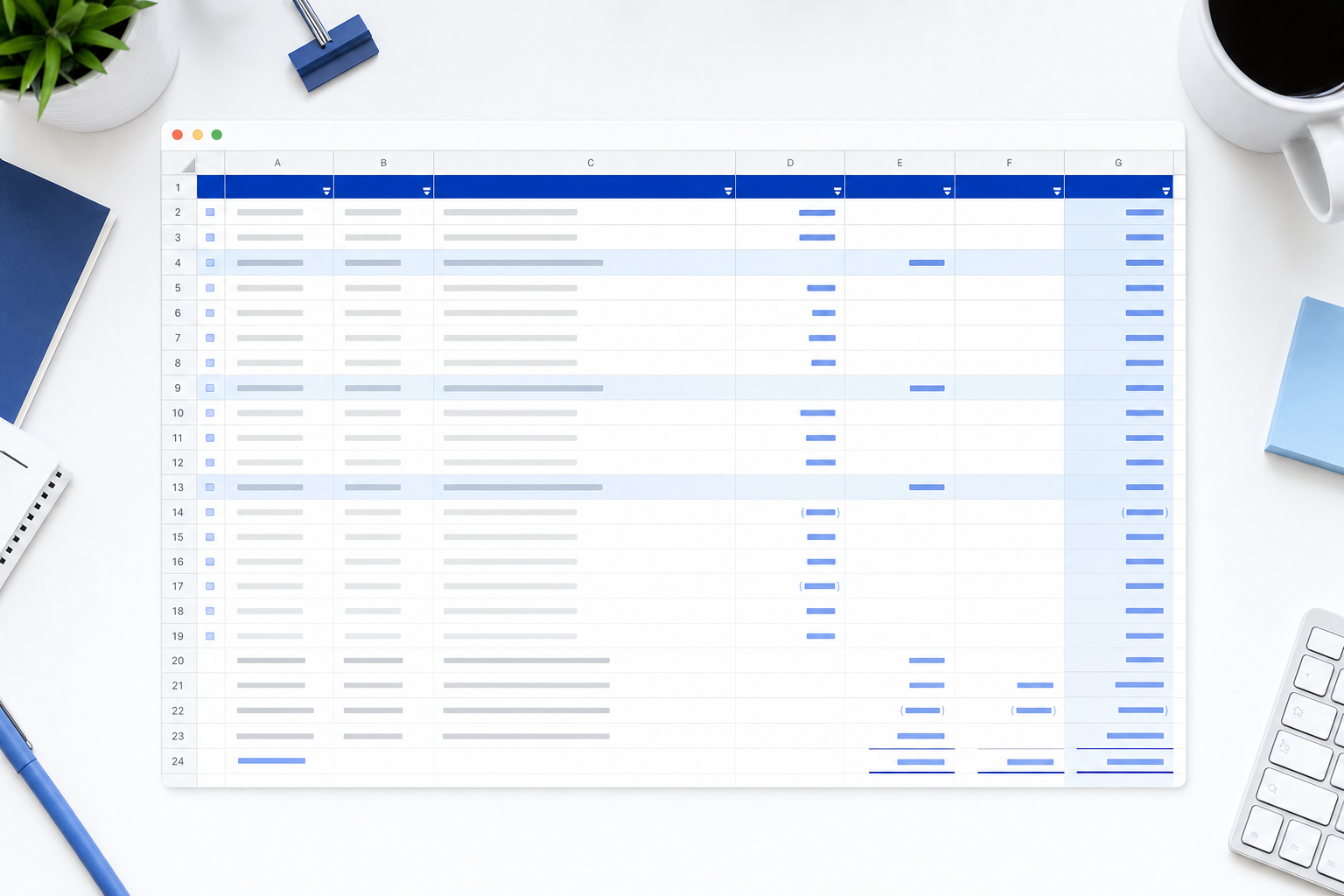
Start with three core sections: your bank statement data, your book (internal) records, and the reconciliation calculation area. Label each tab clearly so nothing gets buried.
Key columns to include:
- Date of each transaction so you can sort and filter by period
- Description or payee name to match entries across both records
- Debit and credit columns separated out instead of a single "amount" field
- A running balance column that updates automatically using a SUM formula
- A "matched" status column where you flag cleared vs. outstanding items
The Core Formula Logic
Use =SUMIF to total cleared transactions and =B2-C2+D2 style balance formulas to carry your running total forward. An IF statement in your status column (e.g., =IF(E2="cleared","✓","pending")) keeps the review process visual and fast.
Key Formulas for Bank Reconciliation Templates
Four formulas do most of the heavy lifting in any bank reconciliation spreadsheet.
Balance Reconciliation Formula
Start with this core equation your template should calculate automatically:
Adjusted Bank Balance = Bank Statement Balance + Deposits in Transit - Outstanding Checks
Common Excel Formulas to Build In
=SUMIF(range, criteria, sum_range)pulls together all transactions matching a specific category, like outstanding checks or uncleared deposits, without manual sorting. Learn more about SUMIF function syntax from Microsoft.=IFERROR(value, value_if_error)prevents broken cells when a referenced transaction field is empty, keeping your template clean during partial-month entries.=ABS(bank_balance - book_balance)calculates the absolute difference between your bank and book totals so a discrepancy never hides behind a negative sign.=IF(difference=0, "Reconciled", "Check Entries")gives you an instant status flag at the top of the sheet so you know at a glance whether the period is closed or still needs work.
Conditional Formatting for Error Detection
Add a conditional formatting rule that turns the difference cell red when its value is anything other than zero. Pair that with data validation on transaction columns to restrict entries to number formats only. Together, these two settings catch most input errors before they compound across months.
How to Use a Bank Reconciliation Template
Starting with a downloaded template already formatted for reconciliation saves meaningful setup time. Here is how to put one to work:
Steps to Get Started
- Enter your opening balance from the prior period's closing statement so the template has a starting point that matches your bank's records.
- Input every transaction from your bank statement, including deposits, withdrawals, fees, and interest earned.
- Record the same transactions from your internal books or cash ledger in the corresponding column.
- Flag any discrepancies between the two columns and investigate each one before moving forward.
- Adjust for outstanding checks or deposits in transit that appear in one record but not the other.
- Confirm the adjusted balances on both sides match, then sign off and save the completed file for your records.
Running this process monthly keeps your books audit-ready, catches errors before they compound over time, and helps your team close faster.
Common Bank Reconciliation Errors and How Templates Help
Mistakes in bank reconciliation tend to fall into predictable patterns. Knowing where things go wrong helps you understand why a well-structured template matters.

Here are the most common errors:
- Timing differences catch many people off guard. Deposits in transit and outstanding checks create gaps between your book balance and bank balance that look like errors but are simply a matter of when transactions clear.
- Transposition errors happen when numbers get flipped during manual entry, turning $1,289 into $1,298 without anyone noticing until the reconciliation falls apart.
- Forgotten bank fees and interest credits go unrecorded in the books more often than you'd expect, leaving unexplained variances every single month.
- Duplicate entries from double-posting a transaction are easy to miss without a side-by-side comparison view.
A good template helps catch all of these by giving you a consistent structure to work through each category in order. When your layout separates deposits in transit from outstanding checks, and flags the adjusted balances clearly, the reconciliation process becomes a checklist you follow instead of a puzzle you solve from scratch each month.
How Often Should You Perform Bank Reconciliation?
The right frequency depends on your business size and transaction volume. Most small businesses and bookkeepers reconcile monthly, aligning with bank statement cycles and the month end close process, making it easier to catch errors before they compound.
Here are the most common schedules:
- Monthly reconciliation works well for businesses with moderate transaction volumes. It fits neatly into standard accounting close cycles using a monthly closing checklist and keeps discrepancies from piling up undetected.
- Weekly reconciliation suits businesses with higher cash flow activity, like retail or ecommerce, where errors spotted early save hours of cleanup later.
- Daily reconciliation is worth considering for high-volume operations or any business handling large cash transactions regularly.
When to Reconcile More Frequently
If your business processes dozens of transactions per day, a monthly review creates too wide a window for fraud or errors to go unnoticed. More frequent checks reduce that risk and make each reconciliation session shorter and more manageable.
A good rule: the higher your transaction volume, the shorter your reconciliation cycle should be.
Reconciliation Method | Best For | Key Limitations |
|---|---|---|
Excel Templates with Formulas | Small businesses with moderate transaction volumes and single-entity books | Formulas break when rows are added or deleted, no built-in audit trail, version conflicts when multiple people update the same file |
Manual Excel Without Formulas | Very small businesses with minimal transactions who need a simple record | Requires manual arithmetic for every calculation, reintroduces error risk, defeats the primary advantage of using spreadsheets |
Automated Software like Double | Higher transaction volumes, multiple accounts or clients, teams needing simultaneous access | Requires onboarding and slight initial learning curve for teams accustomed to spreadsheets |
When Excel Templates Are Not Enough
Excel templates work well for small, straightforward books. But as transaction volume grows, the manual effort required can quietly become a liability.
There are a few common breaking points worth knowing about:
- Formulas break when rows are added or deleted, and without version control, it's easy to lose track of which file reflects the latest reconciliation.
- Multiple bank accounts mean multiple tabs or files, and cross-referencing them manually introduces room for error every month.
- There's no audit trail built into Excel, so if a discrepancy surfaces weeks later, tracing it back to the source takes considerable time. Purpose-built reconciliation tools solve this problem by maintaining complete records.
- Sharing files over email creates version conflicts, especially when more than one person is updating the same document.
For teams managing higher transaction volumes or multiple entities, close management systems with automated bank reconciliation can cut reconciliation time considerably. That's where a purpose-built solution like Double becomes worth a look.
Double goes beyond tracking, actually doing the reconciliation work for you. It connects directly to your accounts, flags discrepancies, and keeps a clear record of every match and adjustment.
Automating Bank Reconciliation Beyond Spreadsheets
Spreadsheets handle reconciliation well up to a point. Once transaction volumes grow or multiple accounts need monthly closes, manual Excel work becomes slow and error-prone. Accounting workflow automation solves these limitations.
Double is built for finance teams and accounting firms that want to move past that ceiling. Where a free bank reconciliation template excel download gives you a static file to fill in, Double automates the matching, flags discrepancies, and tracks every step of the close across all client accounts in one place.
For firms managing reconciliation at scale, Double automates the month-end close from data entry to sign-off, without the version control headaches that come with shared spreadsheet files.
Final Thoughts on Setting Up Your Bank Reconciliation Template
Your bank reconciliation template keeps monthly closes predictable when transaction volumes grow and multiple accounts need attention. Spreadsheets work well until the manual effort outweighs the time savings, at which point you need something built to scale. Double connects directly to your accounts and handles matching, adjustments, and discrepancy tracking without version control headaches.